Copyright 2005-2026 Cabinet Planner LLC
To have the program plan frameless cabinets there are a couple of Standards that must be set first.
1.In each of the Upper, Base and Tall Standards windows set all the stiles and rails to .75 or whatever your box material thickness is.
2.In the General Standards window set the face Frame thickness to zero. You will also probably want to set the shelf edge thickness to zero.
With these settings the program will change the way it handles cabinets in several ways. First, the sizes of the stiles and rails are not printed on the shop drawings with a few exceptions. If you want to have a scribe strip added to one of the sides of a cabinet, just increase that sides stile by the amount of scribe you want and set the scribe for that side. Now the shop plan will give the width of that side and it will also say how wide the scribe strip is.
If you need to increase the size of any of the rails, the program will also then print the size of that rail and adjust the size of the opening.
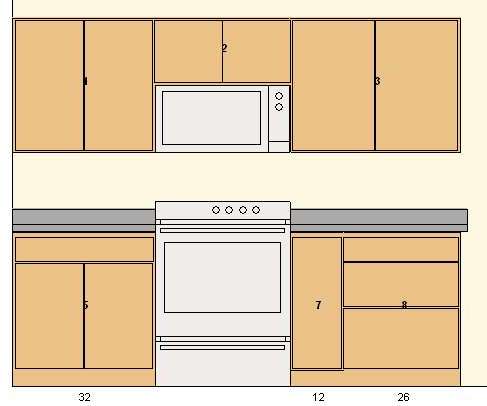
You will need to be careful with the door overlay on cabinets with middle partitions, especially if you are doing full overlay doors. The Special Overlay option in the Door Standards has been added to help with this. Inset doors will work fine, but do not show a reveal between the cabinet and the door on the elevation views.
1.In each of the Upper, Base and Tall Standards windows set all the stiles and rails to .75 or whatever your box material thickness is.
2.In the General Standards window set the face Frame thickness to zero. You will also probably want to set the shelf edge thickness to zero.
With these settings the program will change the way it handles cabinets in several ways. First, the sizes of the stiles and rails are not printed on the shop drawings with a few exceptions. If you want to have a scribe strip added to one of the sides of a cabinet, just increase that sides stile by the amount of scribe you want and set the scribe for that side. Now the shop plan will give the width of that side and it will also say how wide the scribe strip is.
If you need to increase the size of any of the rails, the program will also then print the size of that rail and adjust the size of the opening.
You will need to be careful with the door overlay on cabinets with middle partitions, especially if you are doing full overlay doors. The Special Overlay option in the Door Standards has been added to help with this. Inset doors will work fine, but do not show a reveal between the cabinet and the door on the elevation views.