Copyright 2005-2026 Cabinet Planner LLC
Upper cabinets:
The program will automatically combine multiple 1,2,3 & 4 Opening Upper cabinets, Open Below cabinets and
Blind Uppers into one single unit when the following conditions are met.
The cabinets must be placed on the same wall
The cabinets must be the same depth
The top rails must be the same size
The cabinets must be located exactly next to each other
The right stile on the left cabinet or the left stile on the right cabinet must be set to zero, but not both
The tops of the cabinets must be the same height off the floor, regardless of each cabinet's height
When all of the above conditions are present, a plus sign(+) will be displayed next to each of the cabinets which
are going to be combined. Also, the leftmost cabinet will have a double plus sign(++) next to it. These will help you
identify the cabinets among a larger list of saved cabinets and will let you confirm that the cabinets will indeed be
combined.
The size of the bottom rail only needs to be the same if consecutive cabinets are the same height. If you change
the height of a cabinet, you may also change the bottom rail size for that cabinet and all others to the right that are
the same height.
The partition box in the edit window has been enabled for one opening uppers, in case you are combining some
one opening uppers and need a partition.
When combined with other cabinets, the program will not figure the bottom above the opening for Open Below
cabinets. I hope to work this out in the near future.
Due to the complex nature which these cabinets are handled by the program, it is not possible to give a review
screen before printing. If the cabinets are marked with the "+" signs and the elevation views look right, they will
print correctly.
To print the shop plan for just one set of combined cabinets, open the cabinet with the "++" next to it and click the
print button on the shop plan review window. When printing all shop plans at the same time, only the combined unit
will be printed, not all individual cabinets for the combined unit.
The cabinet number for the combined unit will be the number of the leftmost unit. "++"
The cabinet name on the shop plan will be "Upper Combo"
It does not matter what order the cabinets are planned in, 1 2 3 or 7 23 4, the program sorts them by their location.
If there are only 2 cabinets to be combined, there will be one shop plan with all parts and the drawing. When there
are more than 2, the box parts, face frame parts and drawing will be on one page. The shelves and doors will be on
a second page. It appears that 10 is the limit of cabinets part's that will fit on the two pages. This should not be a
problem, since most of the time you will only be combining 5 or less
Scribe can be applied to the leftmost and rightmost cabinets. If a cabinet has scribe applied to an interior side, it
will be ignored. As with regular single cabinets, the sides, bottoms and tops will be adjusted accordingly with the
upper cabinet type chosen in the upper cabinet standards window.
Any combination of heights and widths can be combined.
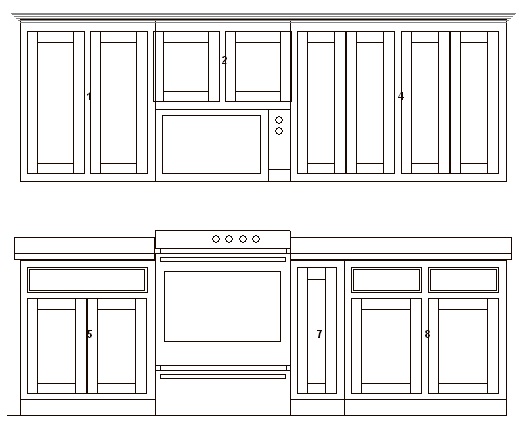
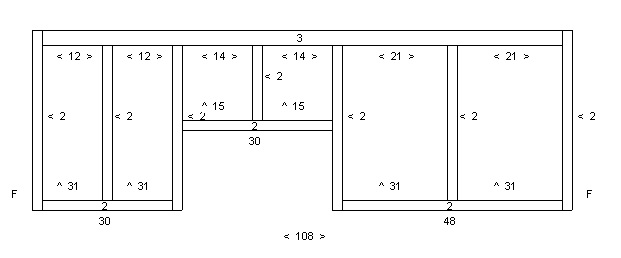
The three upper cabinets in the above job will be automatically combined into one unit and the shop plan drawing will appear as shown on the right.
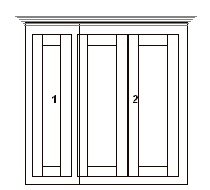
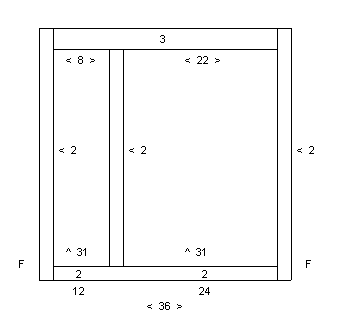
If you need an upper with two different opening sizes, just plan it as shown above.
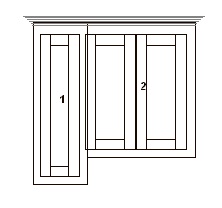
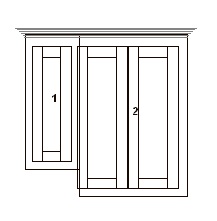
The cabinet on the left is planned correctly. The one on the right will not work. The lower of the two cabinets must have a stile on the side that attach's to the other cabinet and the other cabinet must have the stile removed.
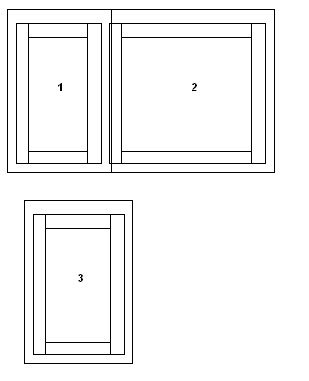
Since this feature of the program sorts the cabinets by location, the above arrangement will not trigger the program to combine cabinets 1 and 2. The location of cabinet 3 messes things up. If you need to have combined upper cabinets above another upper cabinet, they will need to be planned spread out from each other.
Base and Tall cabinets:
The program will automatically combine multiple Tall or Base cabinets into one single unit when the following conditions are met.
• The cabinets must be placed on the same wallThe cabinets must be the same depth
• The top rails must be the same size
• The cabinets must be located exactly next to each other
• The right stile on the left cabinet or the left stile on the right cabinet must be set to zero, but not both
• The height of each cabinet is the same
When all of the above conditions are present, a plus sign(+) will be displayed next to each of the cabinets which are going to be combined. Also, the leftmost cabinet will have a double plus sign(++) next to it. These will help you identify the cabinets among a larger list of saved cabinets and will let you confirm that the cabinets will indeed be combined.
Tall 1 opening, tall 2 opening, and tall 3 opening cabinets can be combined
Base, 1 Drawer 2 Door openings, two drawer base, three drawer base, four drawer base, sink base, tray, and blind bases can be combined
Due to the complex nature which these cabinets are handled by the program, it is not possible to give a review screen before printing. If the cabinets are marked with the "+" signs and the elevation views look right, they will print correctly.
To print the shop plan for just one set of combined cabinets, open the cabinet with the "++" next to it and click the print button on the shop plan review window. When printing all shop plans at the same time, only the combined unit will be printed, not all individual cabinets for the combined unit.
The cabinet number for the combined unit will be the number of the leftmost unit. "++"
The cabinet name on the shop plan will be "Base Combo" or "Tall Combo"
It does not matter what order the cabinets are planned in, 1 2 3 or 7 23 4, the program sorts them by their location.
Scribe can be applied to the leftmost and rightmost cabinets. If a cabinet has scribe applied to an interior side, it will be ignored.
Base and Tall cabinets:
The program will automatically combine multiple Tall or Base cabinets into one single unit when the following conditions are met.
• The cabinets must be placed on the same wallThe cabinets must be the same depth
• The top rails must be the same size
• The cabinets must be located exactly next to each other
• The right stile on the left cabinet or the left stile on the right cabinet must be set to zero, but not both
• The height of each cabinet is the same
When all of the above conditions are present, a plus sign(+) will be displayed next to each of the cabinets which are going to be combined. Also, the leftmost cabinet will have a double plus sign(++) next to it. These will help you identify the cabinets among a larger list of saved cabinets and will let you confirm that the cabinets will indeed be combined.
Tall 1 opening, tall 2 opening, and tall 3 opening cabinets can be combined
Base, 1 Drawer 2 Door openings, two drawer base, three drawer base, four drawer base, sink base, tray, and blind bases can be combined
Due to the complex nature which these cabinets are handled by the program, it is not possible to give a review screen before printing. If the cabinets are marked with the "+" signs and the elevation views look right, they will print correctly.
To print the shop plan for just one set of combined cabinets, open the cabinet with the "++" next to it and click the print button on the shop plan review window. When printing all shop plans at the same time, only the combined unit will be printed, not all individual cabinets for the combined unit.
The cabinet number for the combined unit will be the number of the leftmost unit. "++"
The cabinet name on the shop plan will be "Base Combo" or "Tall Combo"
It does not matter what order the cabinets are planned in, 1 2 3 or 7 23 4, the program sorts them by their location.
Scribe can be applied to the leftmost and rightmost cabinets. If a cabinet has scribe applied to an interior side, it will be ignored.